Guide
How to convert a PNG to an SVG for Cricut Design Space
Cricut Design Space cuts along vector outlines. A PNG or JPG is a grid of pixels, so before it can cut, something has to trace the pixels into closed outlines. You can do that inside Design Space, in the free Inkscape editor, or with Cutline. Which one fits depends on whether you need one color or several.
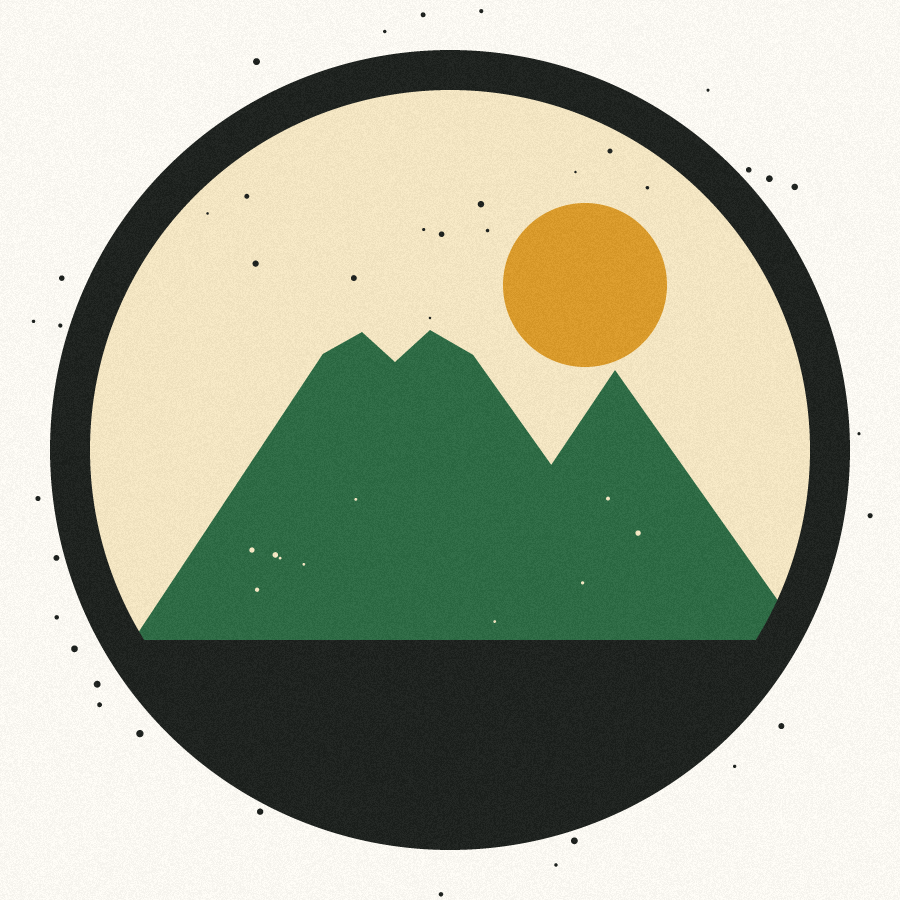

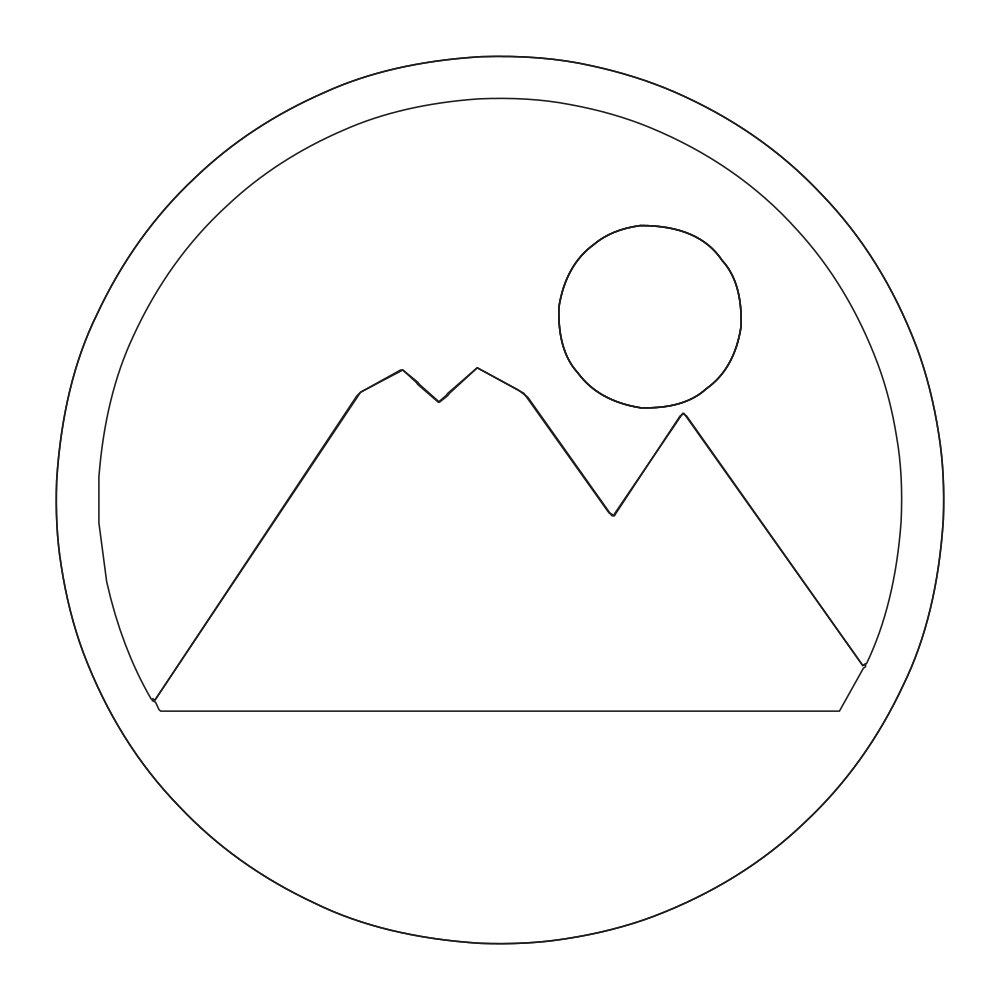
Real output from Cutline's tracer, on a sample image made for this site.
Option 1: upload the PNG straight into Design Space (one color)
Design Space can trace a raster image itself. It is free and fine for a single-color silhouette such as a logo or lettering in one color of vinyl.
- Click in the left panel, then , and to your PNG or JPG.
- Choose how complex the image is (simple, moderately complex or complex) using the descriptions on screen, then .
- Remove the background with (click an area of one color), and . Click to see the cut lines, then .
- Save it as a . Cricut's own guide notes that a cut image keeps only the outer silhouette as the cut path; keeps the colors but needs a printer.
The limit: a PNG uploaded this way becomes one layer. For layered vinyl or HTV with several colors you either upload the image once per color and erase the other colors each time, or bring in an SVG that already has the colors separated.
Option 2: trace it to an SVG with Inkscape (free, several colors)
Inkscape is a free vector editor for Windows, macOS and Linux. Its Trace Bitmap tool writes real SVG paths, one group per color.
- Open the PNG in Inkscape (, or drag it in) and click it to select it.
- Open (Shift+Alt+B).
- For one color, pick and , and move the threshold until the preview shows the shapes you want. For layers, pick , choose and set the number of scans to the number of colors in your design.
- Turn on (raise the size to drop dust), and , then click .
- The trace lands exactly on top of the image. Drag it aside, delete the original image, and remove any layer you don't want to cut (often the white background scan).
- Set the size you want in inches with the W and H boxes in the toolbar, then and choose .
Then in Design Space: , pick the SVG and save. Vector files skip the cleanup screens, and each color group arrives as its own layer. Check the size on the canvas with the padlock closed, because SVG sizes don't always survive the trip between apps.
What to watch for with Inkscape: multiple scans stack every color on top of the full-size background shape unless you delete it, tiny specks become tiny paths that the blade still tries to cut, and colors sit edge to edge, so layered vinyl can show a hairline gap where two colors meet. Overlap them slightly or offset the lower layer.
Option 3: Cutline
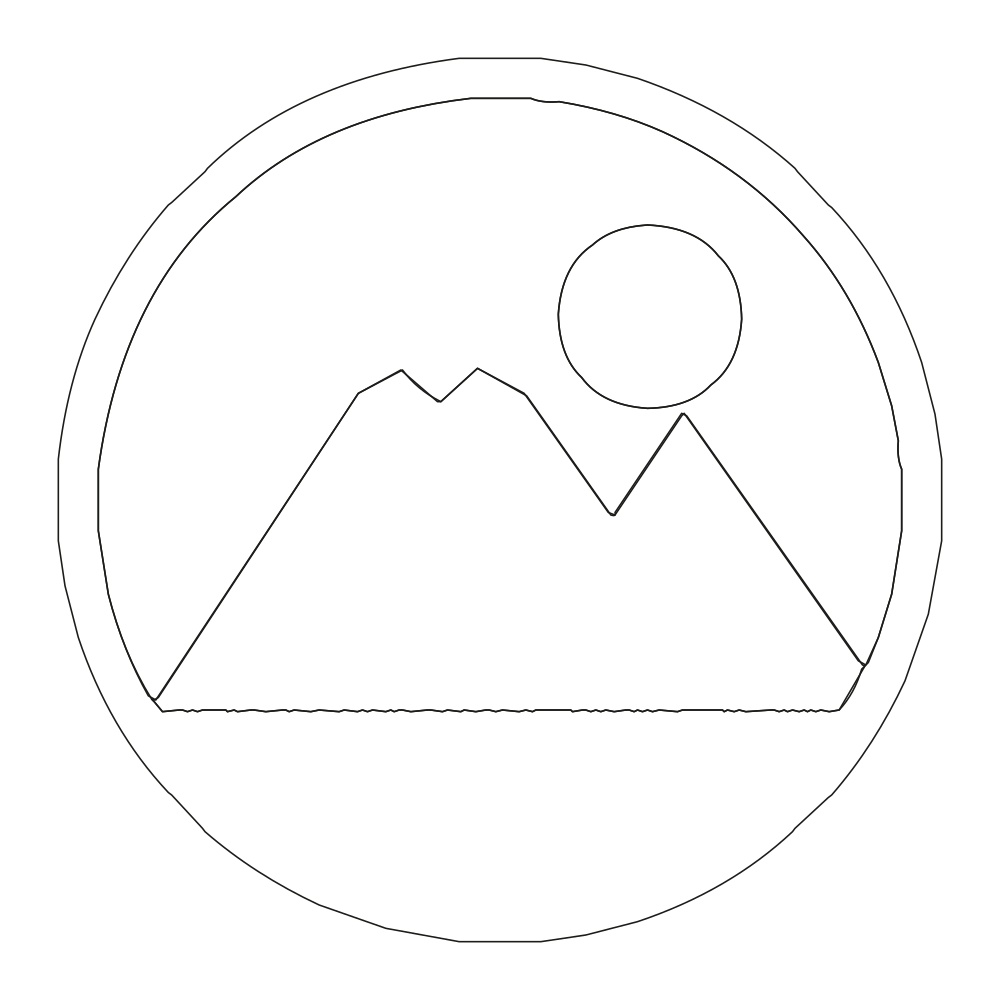
This is the tool I built for the job. Drop the PNG in, pick , set the number of colors, and the preview shows the color layers and the exact cut lines. It removes specks and pinholes below the size you choose, closes every outline, and in stacked mode tucks each color slightly under the ones above it so layered vinyl has no gaps. The SVG is sized in inches, so it lands on the Design Space canvas at the size you set, one layer per color.
Before paying you can download a free test cut: one black layer traced at 600 px, so you can cut it on scrap and check the size and the smallest pieces. The full file is $2 for that image.

Which to use
| You have | Easiest route |
|---|---|
| A one-color logo or word | Design Space upload, saved as a Cut image. |
| A design with 2 to 6 colors for layered vinyl or HTV | Inkscape Multiple scans, or Cutline with stacked layers. |
| A photo of a hand drawing | Fix contrast first (see preparing an image), then either tool in one color. |
| A full-color photo of a person or a landscape | Print Then Cut. No tracer turns a photo into something you can weed. |
- Cricut, How to upload images (Upload Image, image types, cleanup tools, Cut image vs Print Then Cut image).
- Inkscape, Tracing bitmaps tutorial.
Cutline traces a PNG or JPG in your browser into closed, speck-free cut paths, split into color layers, and writes the file for Cricut, Silhouette, Glowforge, LightBurn or a sign plotter. Tracing, the preview and a one-color test cut are free, so you can cut a test piece on your own machine first. The full-resolution files for one image are $2, paid once. No subscription, and the image never leaves your computer.
Trace an image free